One Take
Direct the shot. Not the prompt.
Set your actors. Choose the lens. Draw the camera move. Control the blocking and timing. Then hand the shot to the AI video generator you already use.
One Take gives you a directing layer before generation. No Blender to learn. No plugin to install. No credits spent on words that can’t describe a camera move.
One flat price. No credits. Cancel anytime.
Scroll to run the take

01Block the shot
Put your actors where you want them.
Place your actors. Mark where they move. Set your camera.
Start with a push, orbit, follow, track, reveal or handheld move—or create your own.
You don’t need to know 3D.
You just need to know the shot you want.
02Direct the camera
Draw the move instead of describing it.
- Choose the lens.
- Draw the camera path.
- Set where the move begins and ends.
- Control where the camera speeds up, slows down, stops or turns.
Want another version?
Move the camera and try it again.
Same set. Same blocking. New move.
03Keep the motion simple
Your finished image defines the look. One Take defines the move.
A detailed 3D render can give a generative video model too much visual information.
So One Take deliberately separates motion from appearance.
- The motion plate tells it how to move.Simple figures. Camera movement. Blocking. Timing.
- Your first frame tells it how to look.Your actors. Your wardrobe. Your location. Your lighting.
- The prompt tells the model how to use both.
The rough look isn’t a limitation.
It’s part of the workflow.
04Hand off the shot
Three files. That’s it.
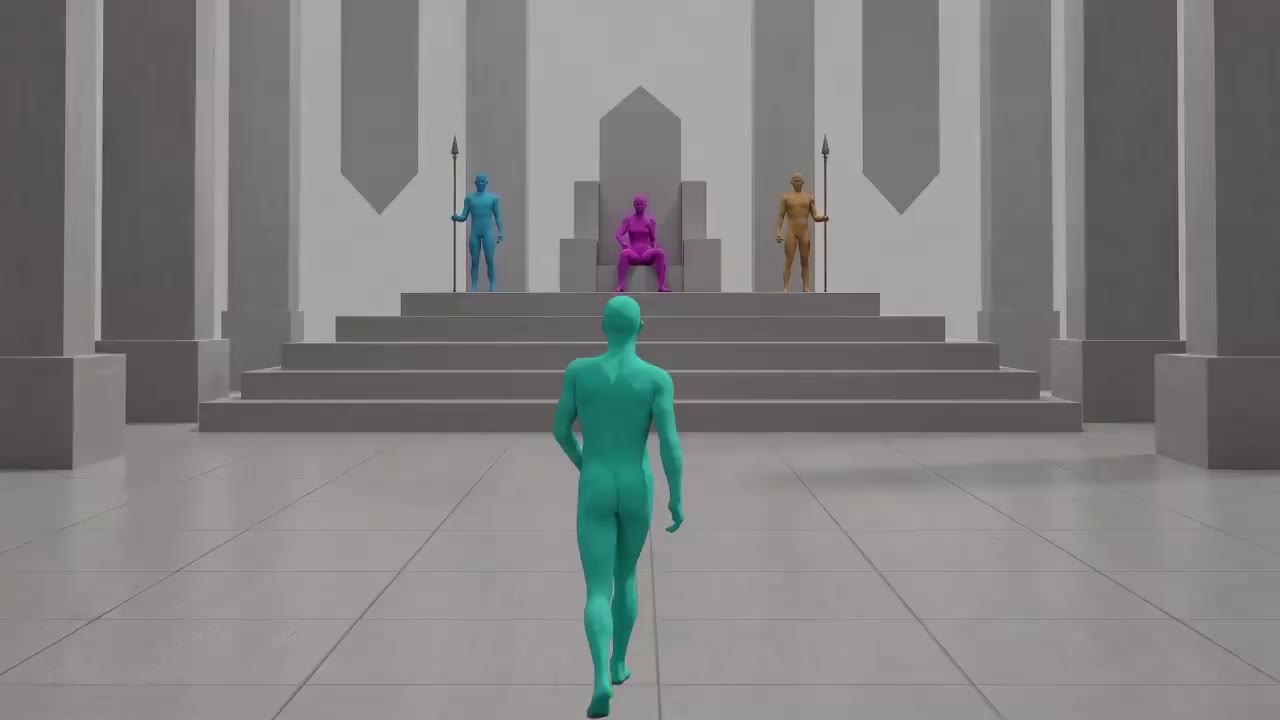
01This picture is frame one.
02This video is the camera only.
03Don’t copy the gray look.
04Don’t cut mid-shot.
Download them.
Upload them to the AI video tool you already use.
Generate there.
Plate. Frame. Result.
The gray plate set the move. The first frame set the look. The generator did the rest.
Your AI generator makes the picture.
One Take directs the shot.
One Take isn’t another AI video generator.
It’s the directing layer that comes before generation.
Instead of asking a model to interpret:
“Push in slowly, then orbit around the actor while she walks toward the window...”
you build the move.
- The camera has a path.
- The actor has a position.
- The shot has timing.
- The lens has a value.
You’re no longer describing the shot. You’re directing it.
Start with a shot.
Not an empty 3D program.
Choose a move and make it yours.
- Push In 35mm · 6s · walk-up
- Pull Out 35mm · 6s · reveal the room
- Orbit 50mm · 8s · 270°
- Follow 28mm · 5s · back-follow
- Track 35mm · 6s · lateral
- Reveal 28mm · 5s · past the wall
- Handheld 35mm · 4s · light shake
Keep what works. Change what doesn’t.
Change two seconds.Not the whole shot.
The camera path lives in your project.
The blocking lives in your project.
The set stays where you left it.
So when one moment isn’t working, change that moment.
- Move a key.
- Change the speed.
- Adjust the blocking.
- Move the camera.
- Export again.
You may still need another generation from your video model.
But you don’t have to rebuild the shot just to change the shot.
Two ways to start
Direct it yourself.
Open a stage. Place your actors. Set the lens. Draw the camera.
Build the shot visually instead of trying to translate it into prompt language.
Or tell One Take what you want.
Describe the beat. Let Assist create a starting setup.
Then take over. Move anything. Change anything. Direct the result.
AI can make the first suggestion. You make the shot.
3D without becoming a 3D artist.
Underneath One Take is a 3D stage.
But the experience isn’t built around vertices, shaders, nodes and technical 3D terminology.
It’s built around the things directors already understand:
- Actors.
- Cameras.
- Lenses.
- Movement.
- Blocking.
- Timing.
The 3D is underneath the experience.
Directing stays on top.
Your computer stays yours.
One Take runs in the browser.
- No Blender.
- No plugin.
- No MCP bridge.
- No agent controlling your computer.
- No credit meter. No lock-in to one generator.
Build the shot.
Download your files.
Upload them to the generator you already use.
We didn’t invent rough 3D.
We made it practical for directors.
Artists have been using rough 3D scenes and viewport renders to plan shots and guide generative tools.
The traditional way asks a lot. Learn a 3D application. Build the scene. Set up the cameras. Animate the motion. Then translate it all back into an AI workflow.
One Take removes the parts you shouldn’t have to learn.
All the power of 3D shot planning. None of the software lessons.
What One Take isn’t.
- It’s not another AI video generator.Use the generator you already like.
- It’s not a scriptwriter.Your idea, performance and dialogue stay yours.
- It’s not a magic fix for every generation.Some shots don’t need it.
- It’s not a traditional 3D package.The 3D exists to help you direct the shot.
One Take is for the moment when you know what the shot should do—
and words aren’t enough.
Built by people who block shots for a living.
Since 1997, Animatic Media has drawn the boards, animatics and pre-vis that agencies like Goodby Silverstein, Wieden+Kennedy and TBWA\Chiat\Day used to work out shots before a single frame was filmed.
- Where does the actor stand?
- Where does the camera go?
- What lens are we using?
- When does the move begin?
- Where does it stop?
Those questions didn’t disappear when video became generative.
They became more important.
One Take brings that directing process into the browser.
Sometimes it takes more than a prompt.
One plan
$9.99 / month
- No credits.
- No export meter.
- No charge every time you move the camera.
One plan
$9.99/ month
Build stages. Direct shots. Revise them. Export again.
Then generate the finished video using the AI video account you already have.
Cancel anytime.
Questions.
Do I need Blender?
No. That’s the point. One Take uses 3D underneath the experience, but you work with actors, cameras, paths, lenses and shots.
Does One Take generate AI video?
No. One Take helps you design and control the shot before generation. You export the references and use them with your AI video generator.
What do I download?
A motion plate, a first frame and a short prompt explaining how the references should be used.
Why is the motion plate so simple?
Because its job is to communicate movement, blocking, camera motion and timing. The appearance of the finished shot comes from your first frame and the generative video model.
Will One Take guarantee a perfect generation?
No. Generative video is still generative. One Take gives you repeatable camera movement, repeatable blocking and clearer visual instructions. It doesn’t make the video model deterministic.
Which AI video models can I use?
We test One Take with Seedance, Kling and MiniMax H3. Any model that accepts a reference video and a first frame can use the files. Capabilities vary from model to model. You aren’t locked into one generator.
Do I need ChatGPT or Claude?
No.
Do I install anything?
No plugin. No bridge. No MCP. One Take runs in the browser.
How is One Take different from the Higgsfield Blender plugin?
The Higgsfield plugin runs inside Blender and generates with Higgsfield credits. One Take runs in your browser for one flat price. It doesn’t generate video. It exports a motion plate, a first frame and a prompt that you can use in any generator that accepts references—including Seedance on Higgsfield.
When should I use One Take?
When camera movement, blocking, timing or spatial continuity matters. A simple locked-off shot may not need it. A push through a room, an orbit around an actor, a reveal, a tracking shot, a precisely timed camera move or a complicated piece of blocking? That’s what One Take is built for.
Stop prompting the camera.Direct the shot.
Sometimes it takes more than a prompt.
Hire the studio